Browser extension
Your proxy, in the toolbar.
Pick a country, connect, and browse from there. It signs in to the gateway for you and shows the exit you land on.
Made for the checks you do by hand: local search results, ads, prices and pages that change by country. It runs on the plan you already have, with the same country, state and city targeting as the dashboard.
- version 1.1.0
- chrome + edge
- 220 KB zip
- free with any plan
How it looks
one popup
Everything on one screen.
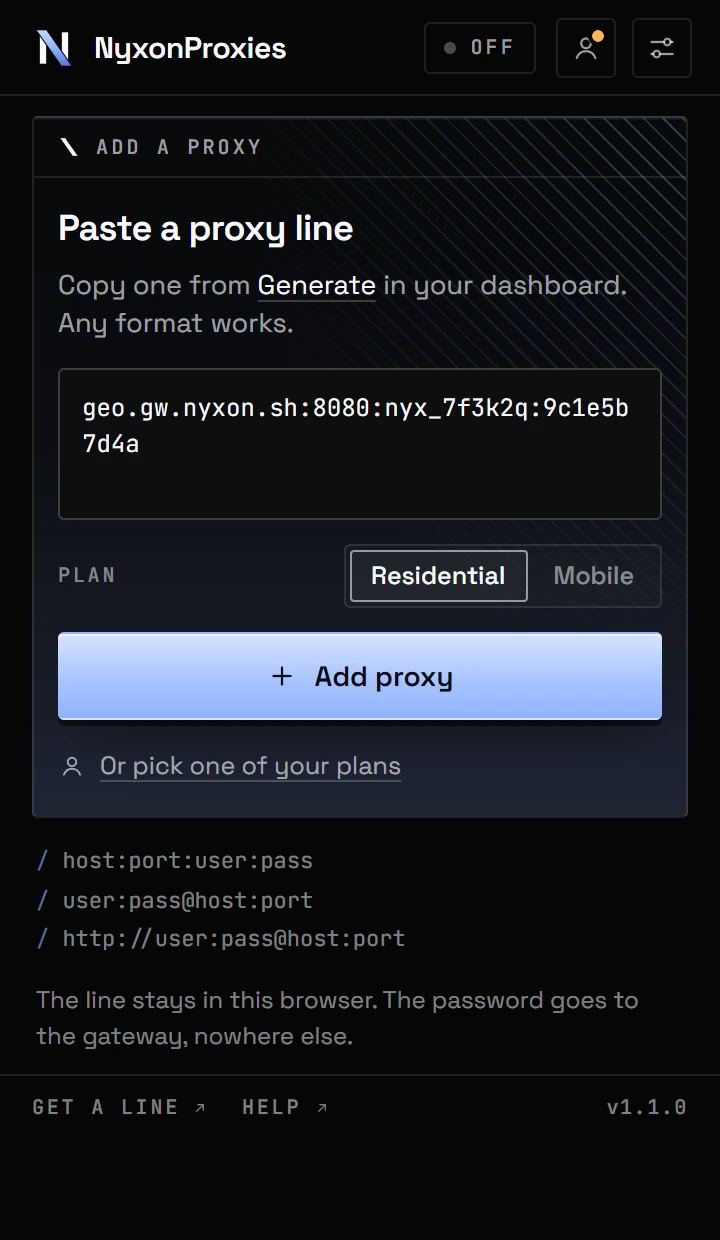
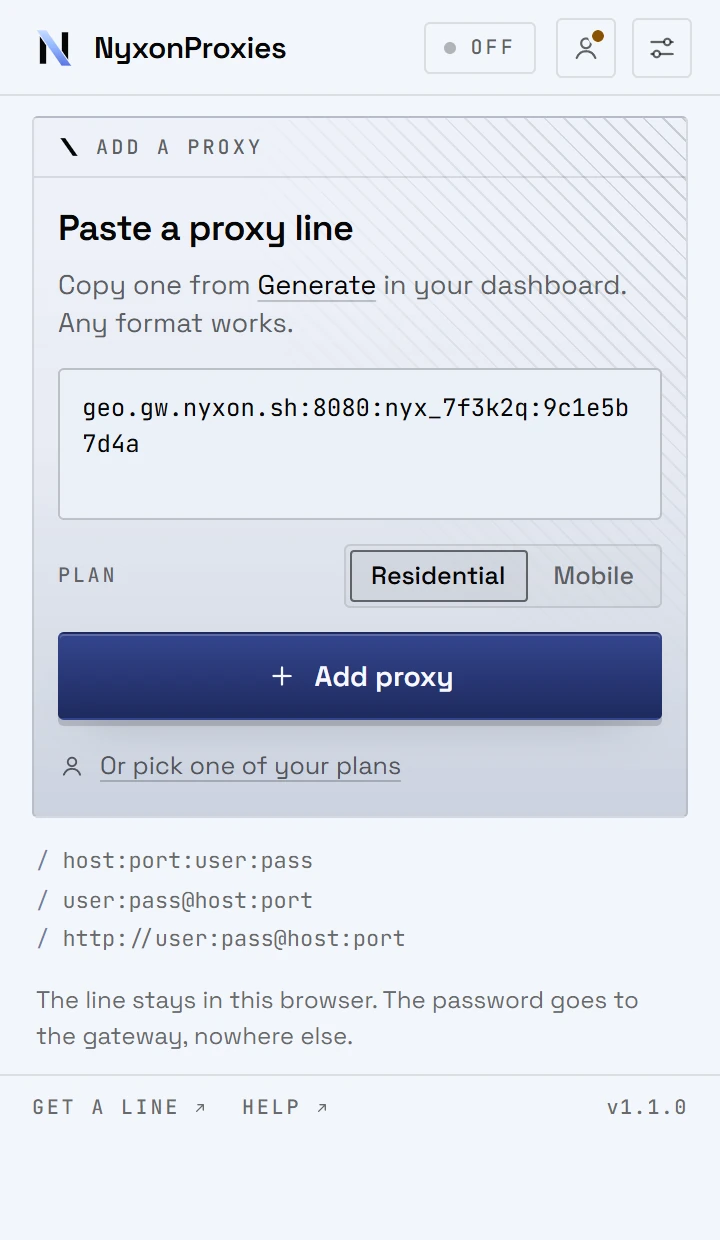
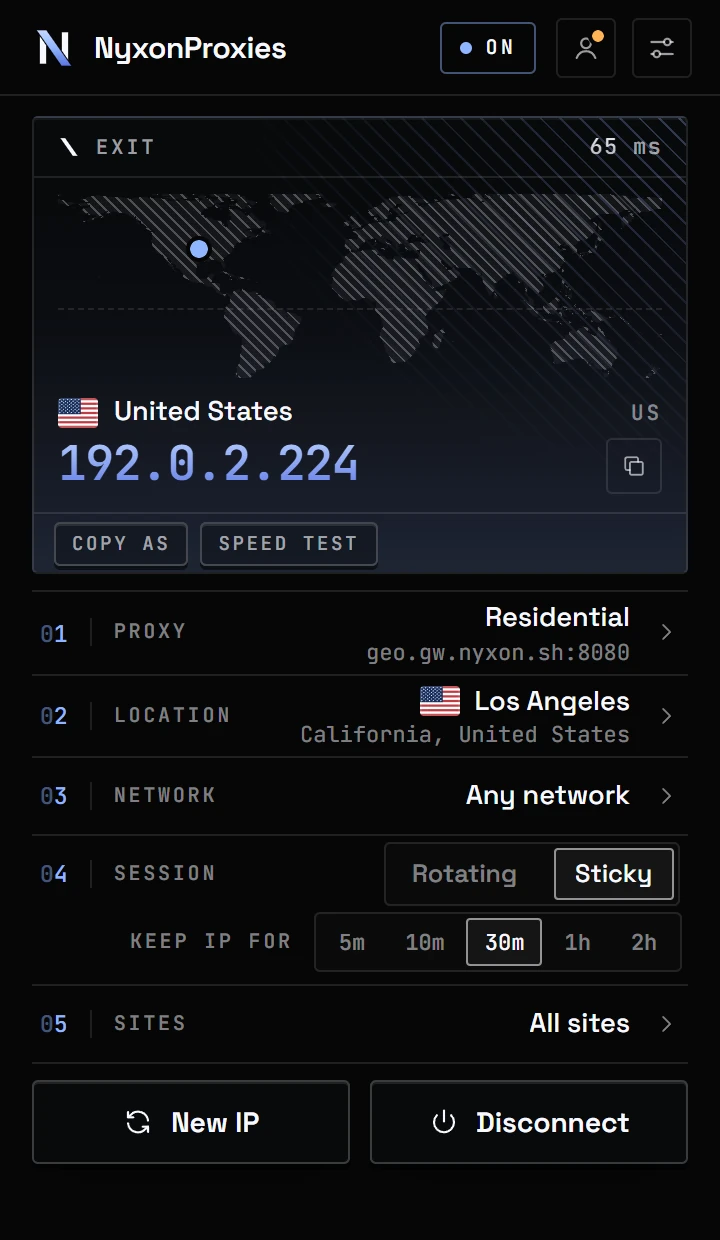
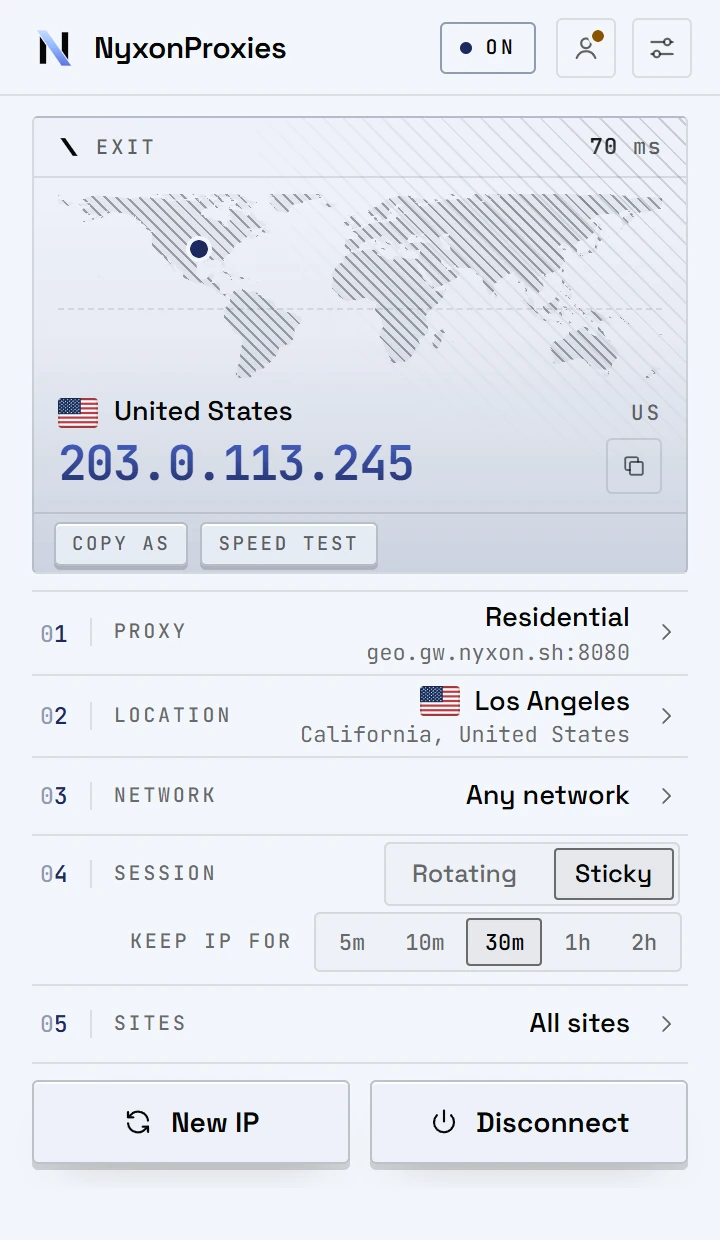
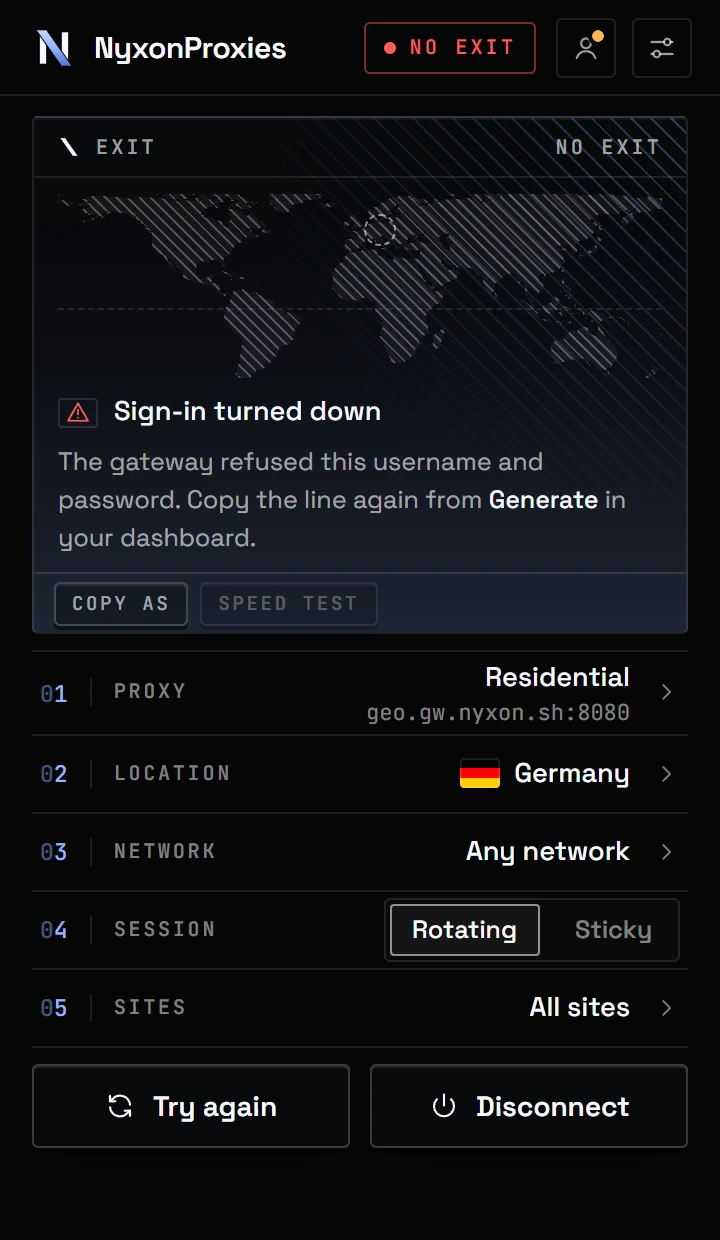
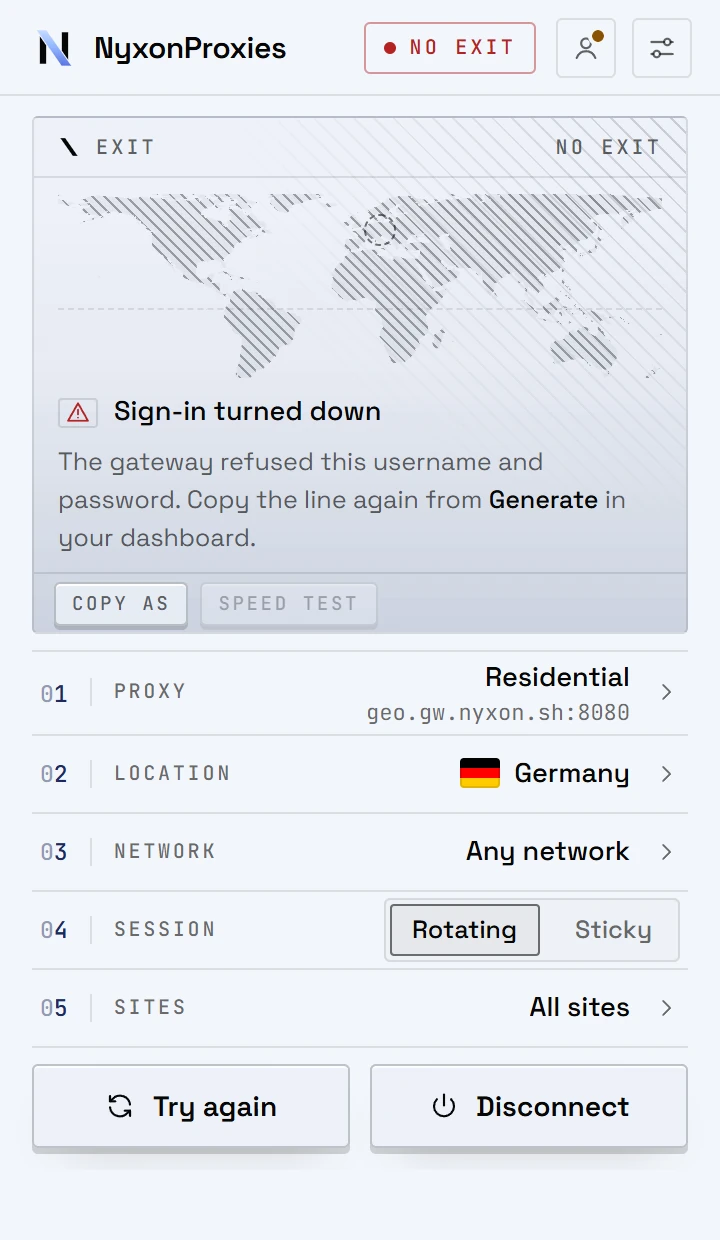
It opens on where you exit: the map, the IP and how long the check took. Under it, the line you use, the location, the session and which sites go through. The frame above is the real popup, on example data.
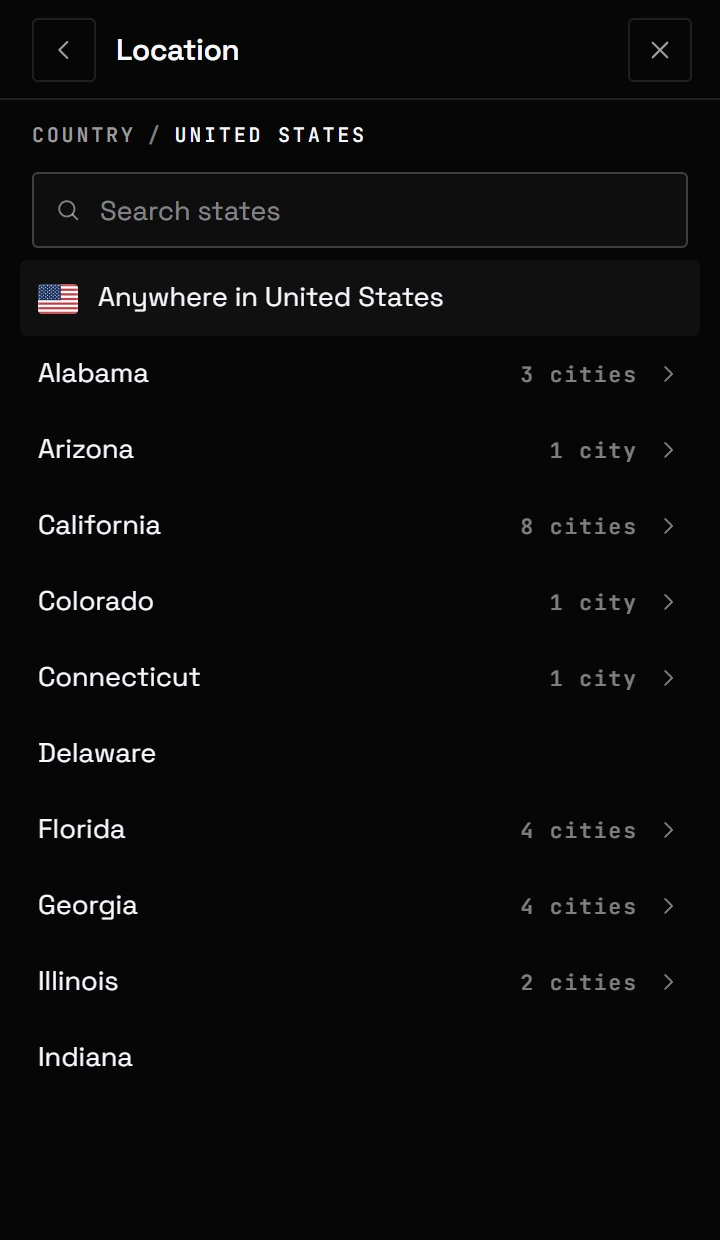
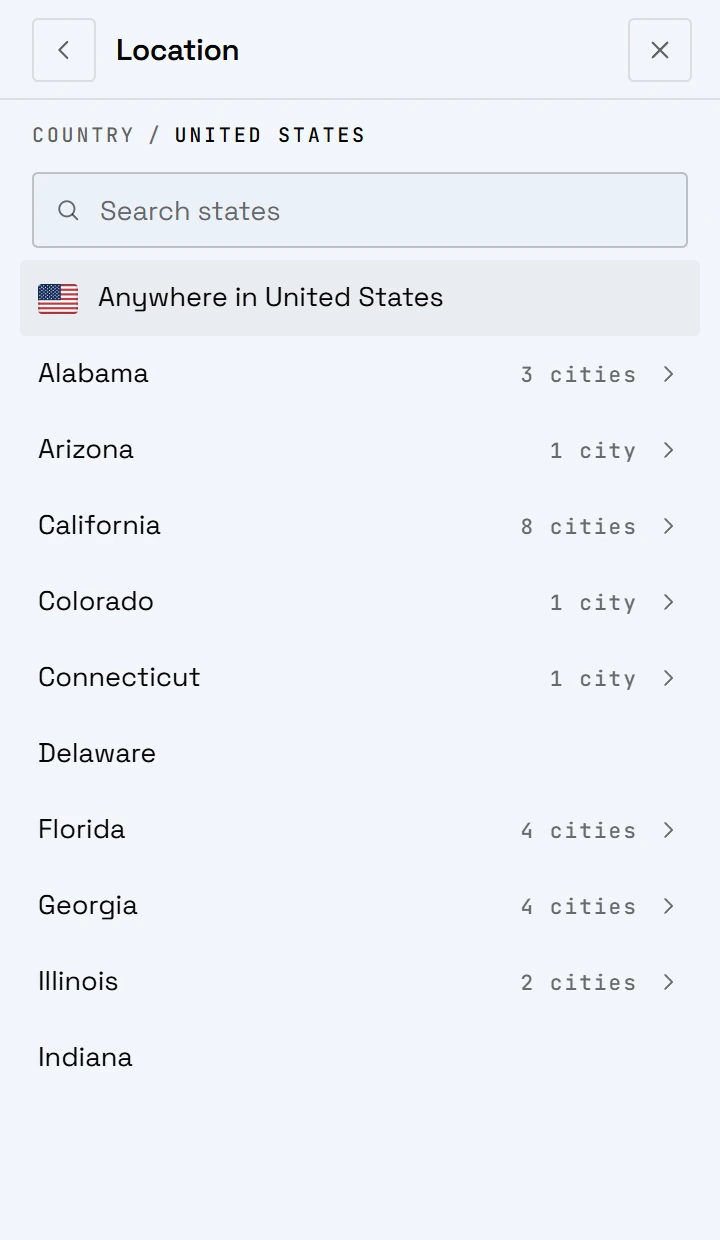
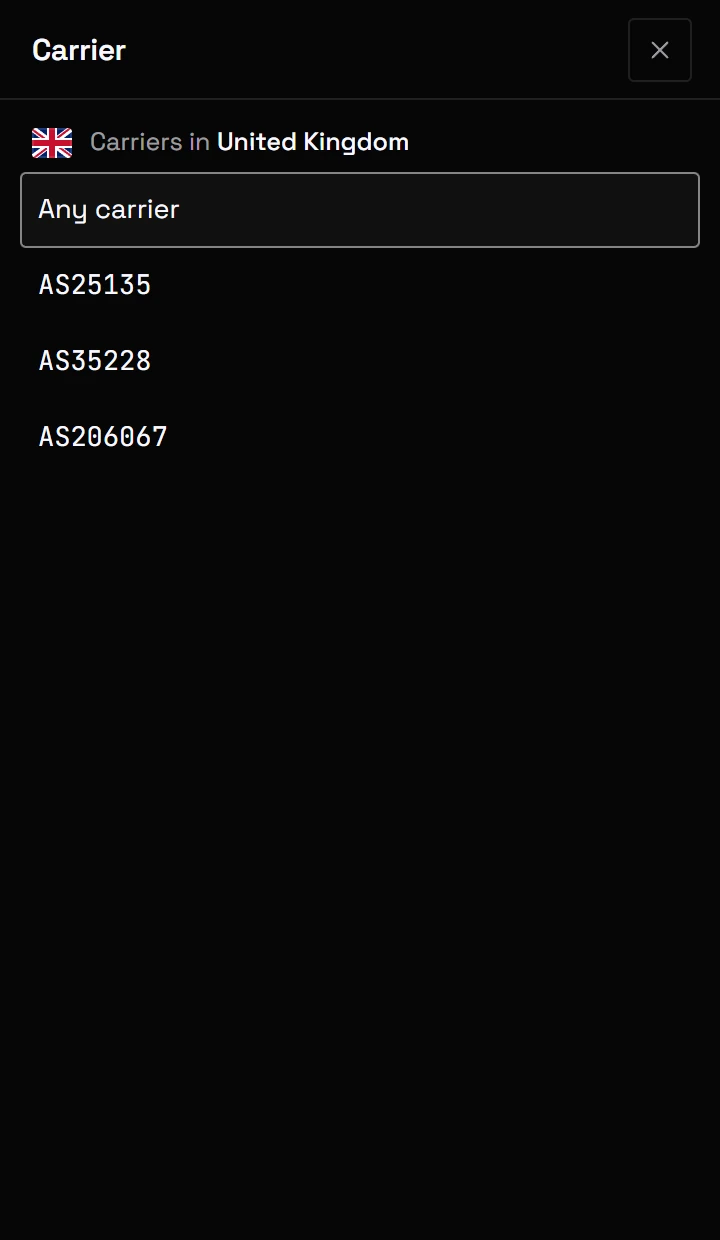
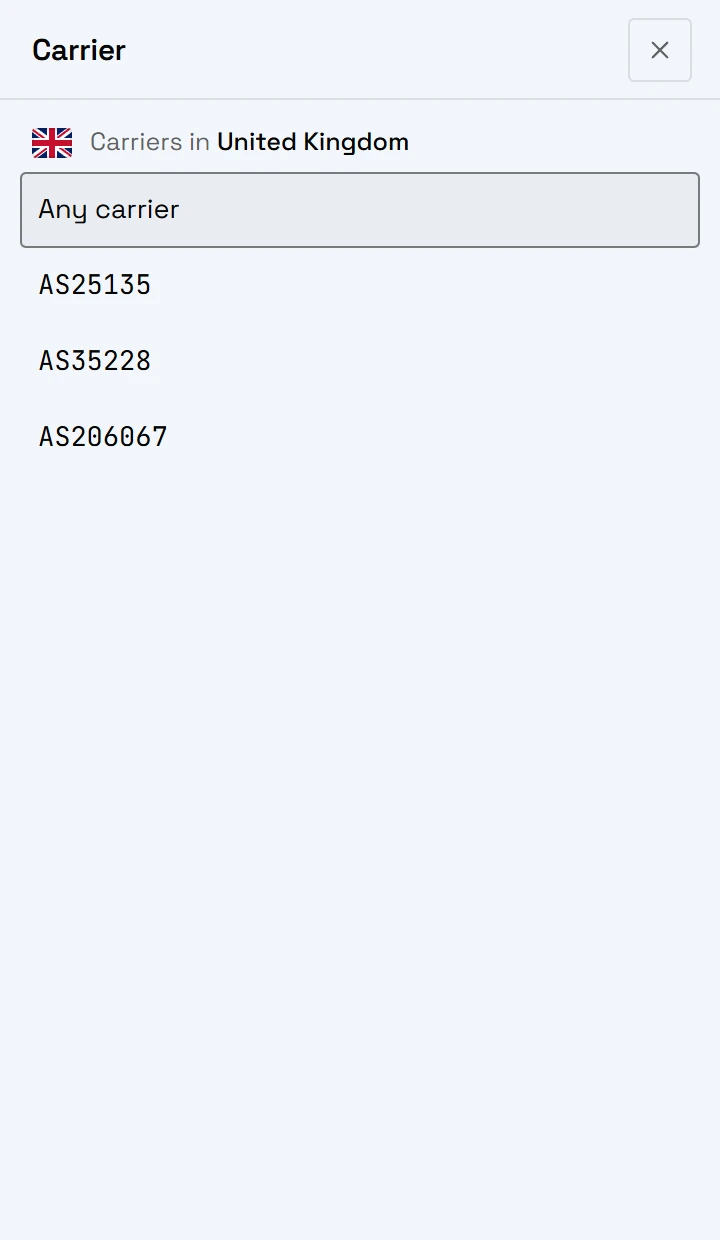
version 1.1.0
A switcher that knows the gateway.
You pick the place and the session; it writes them into the username the way Generate does, signs in, and checks where you came out. All 40 things it does, by part of the popup.
- Reads every line format Generate gives you:
host:port:user:pass,user:pass@host:port,http://andsocks5://. A SOCKS5 line moves to the pool's HTTP port. - Works with every plan: each pool gets the location and session controls it has, and a static line, like Dedicated ISP, works as it is.
- Keeps several lines and switches between them in one click; removing one asks first. Pasting a saved line again updates it instead of adding a copy.
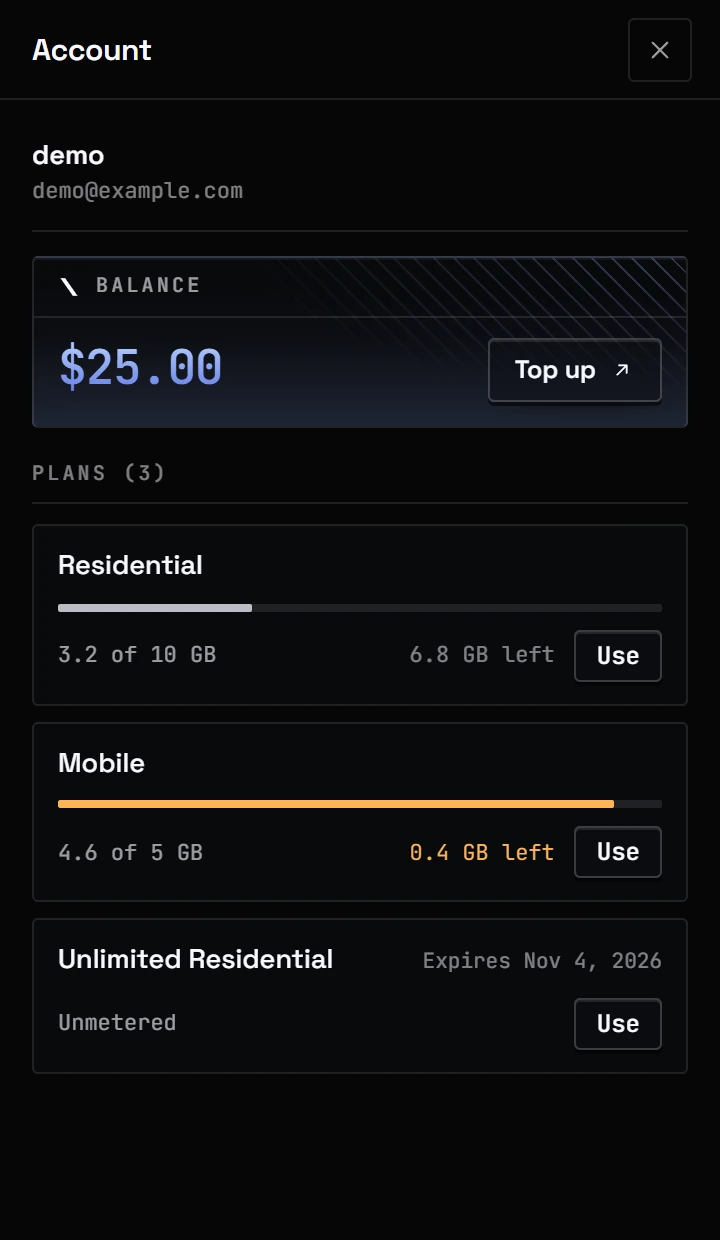
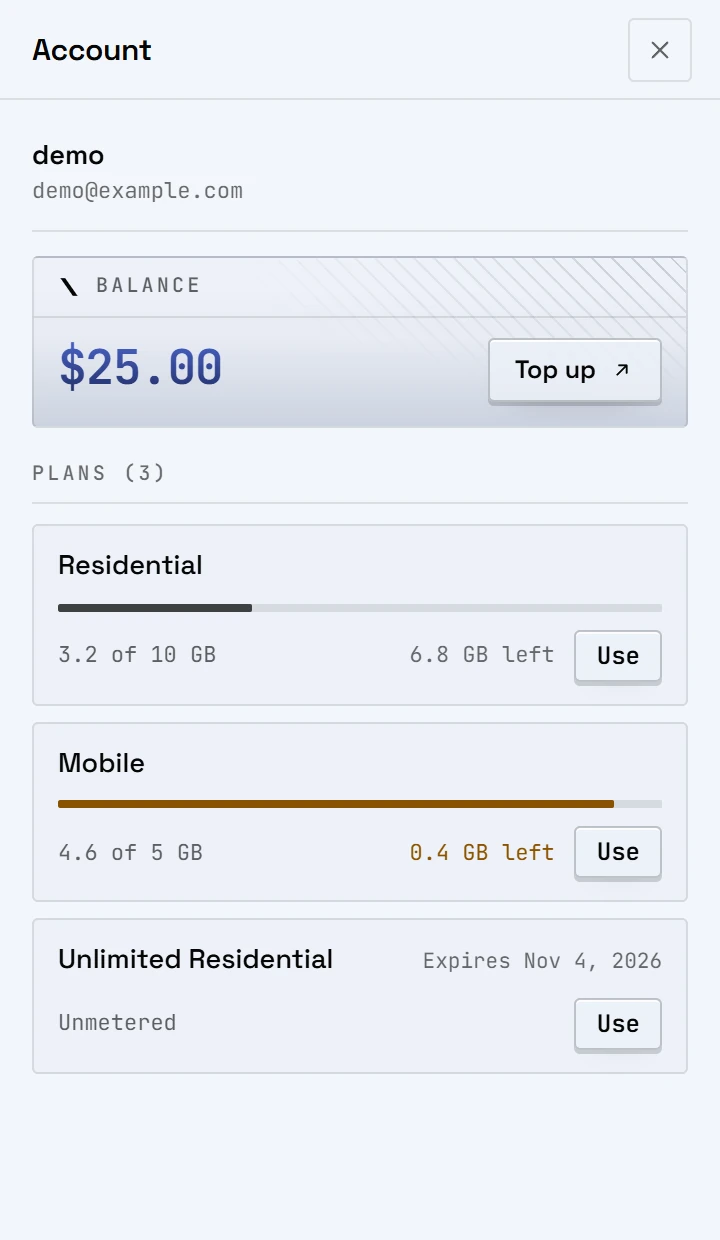
- Optional sign-in, two-factor codes included: your balance, and each plan with its data left and its expiry.
- Use puts a plan's line in the popup without copying anything.
- Low traffic alerts: a notification when a plan has under 10% or 1 GB left, checked every 30 minutes. Clicking it opens the plan.
- A dot on the account button while a plan is running low.
- Every country the pool serves, from the same live catalog as the dashboard, refreshed once a day. A copy inside the extension stands in when the site can't be reached.
- On Residential, a US state and then a city.
- On Mobile, the carriers the catalog lists for the country, by network number. On Residential, any network number, checked against the catalog.
- Search a country, state or city by name, and pick it with the arrow keys and Enter.
- Rotating for a new IP on every request, or sticky to keep one for 5, 10 or 30 minutes, 1 hour or 2 hours.
- A new location or a new length starts a new sticky session by itself.
- New IP starts a new sticky session, or on Rotating closes the open connections so the next ones take new IPs.
- Where the proxy itself decides the location or the session, the popup says so instead of offering a choice.
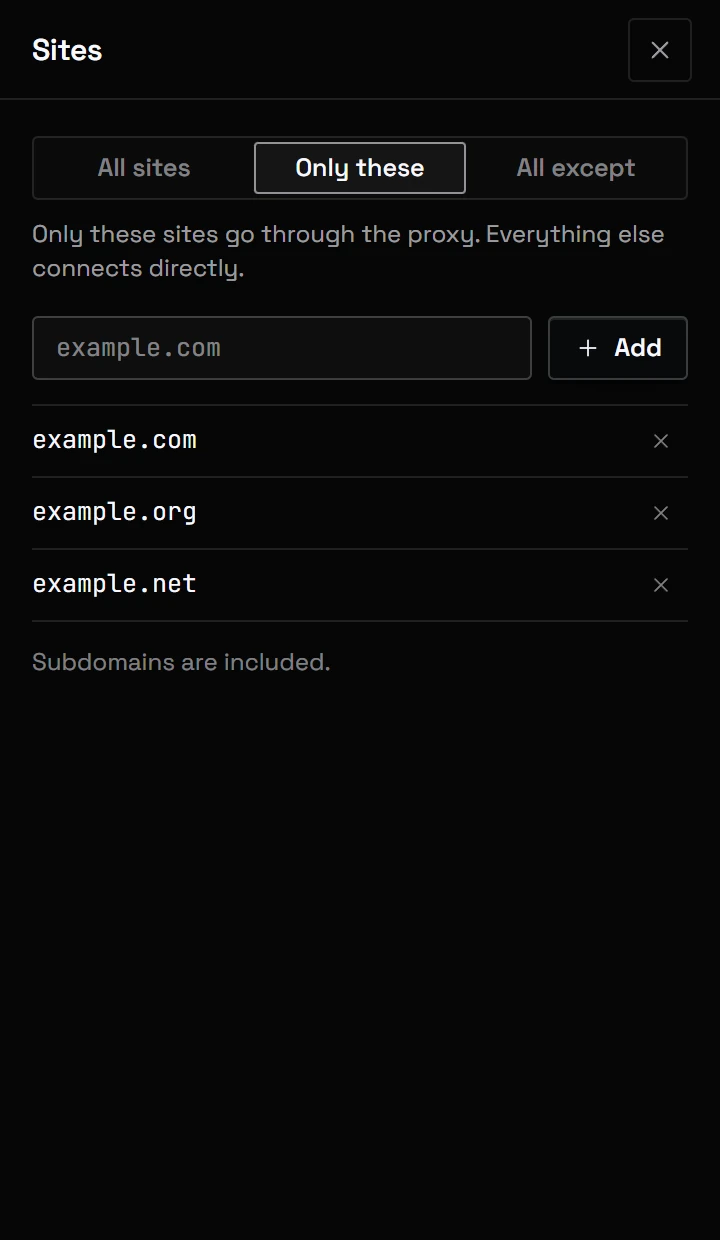
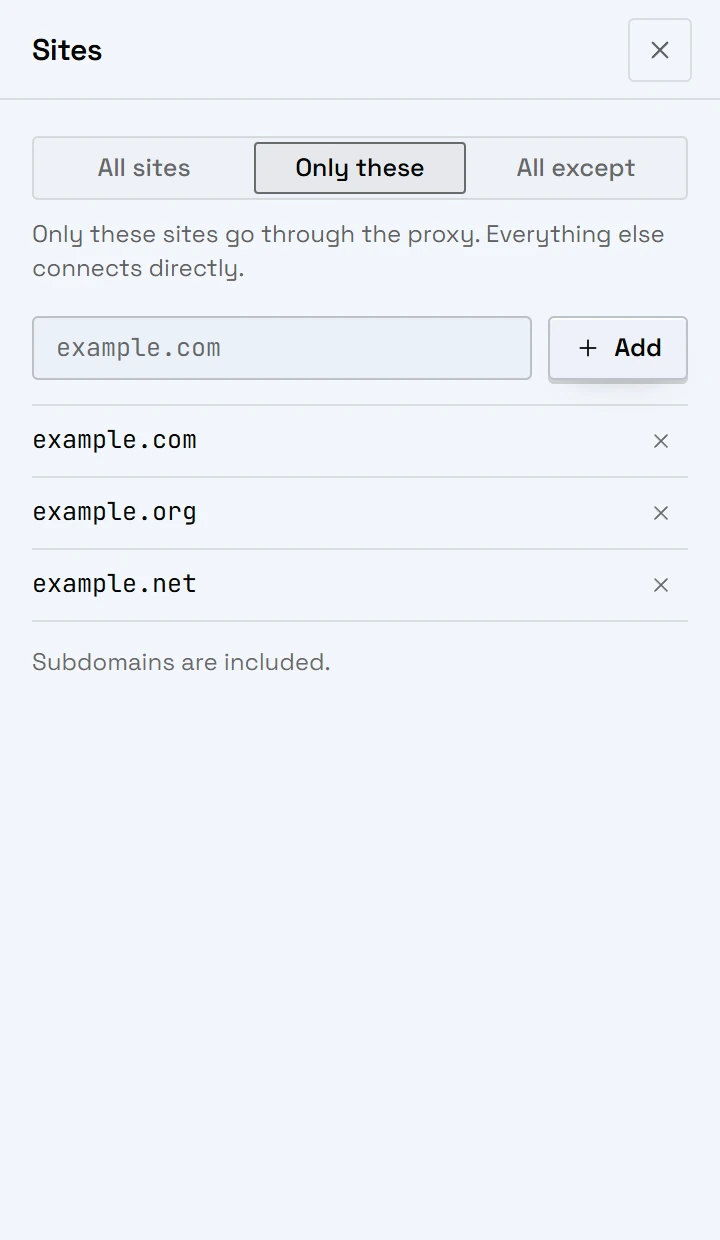
- Every site through the proxy, only the sites you list, or all but them. Subdomains count with their site, up to 200 sites.
- One click adds the site in the open tab.
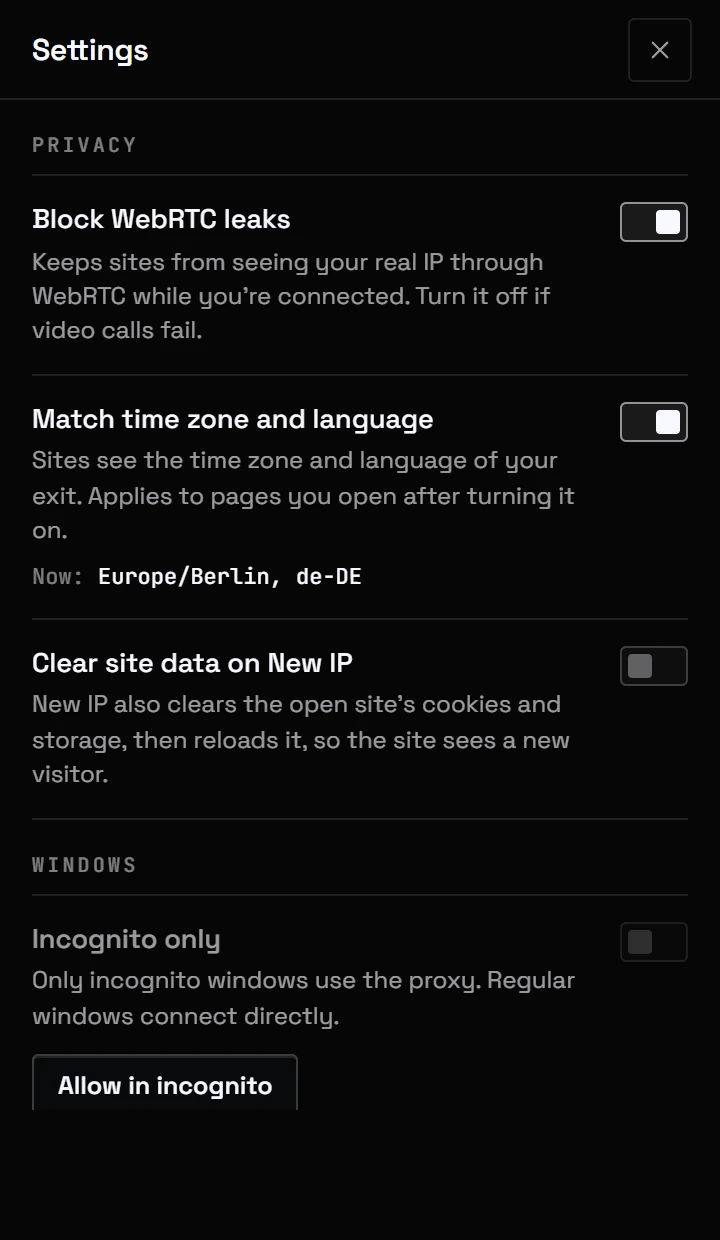
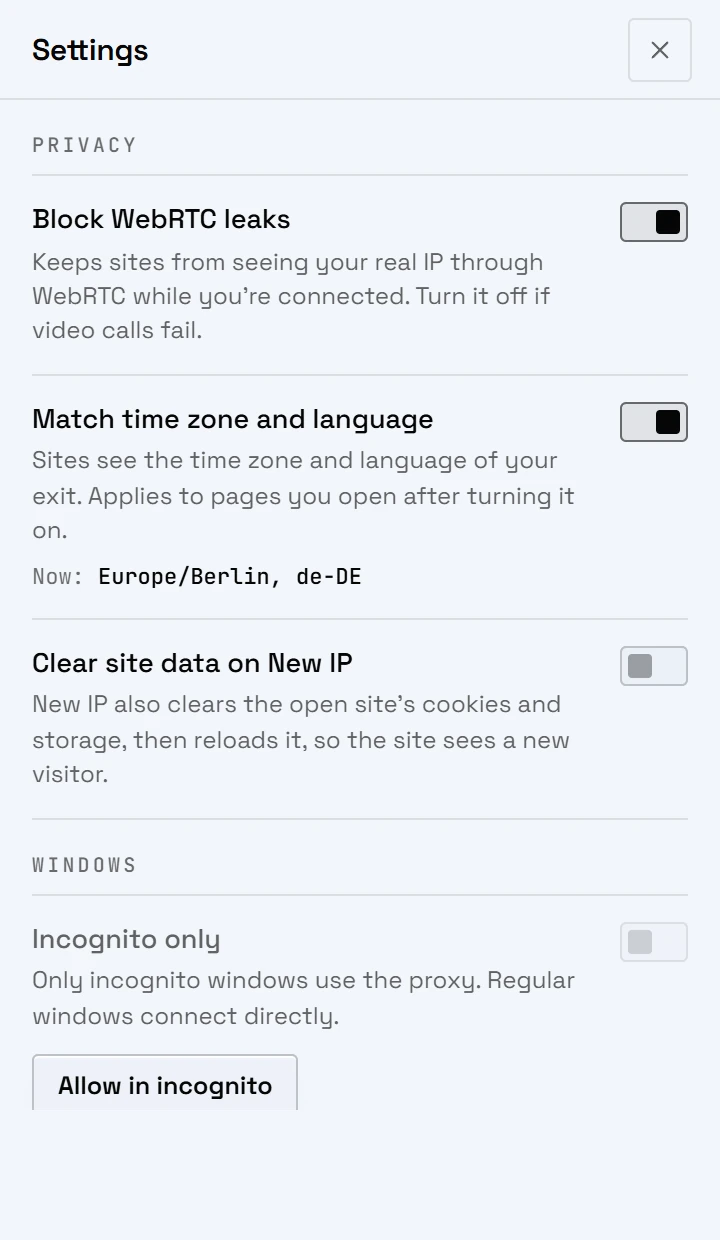
- Incognito only: only incognito windows (InPrivate in Edge) use the proxy, and regular windows connect directly.
- localhost, your local network and nyxonproxies.com always connect directly, so your dashboard opens even when a plan runs out.
- Blocks WebRTC leaks while you're connected, so a page can't find your real IP through it. Turn it off if a video call fails.
- Match time zone and language: pages you open get the exit's time zone and language, in dates, times, number formats,
navigator.languageand theAccept-Languageheader. - That time zone follows the US state or city you picked, else the exit's data center, else its country. The settings show what pages are told.
- Clear site data on New IP: also clears the open site's cookies and storage and reloads it, so the site sees a new visitor.
- Your lines and passwords stay in this browser, and Copy as shows the password masked.
- No analytics.
- Checks the exit through the gateway: IP, country and round trip, with the exit on a map. IPv6 exits included.
- Says so when the exit lands in another country than the one you picked.
- Copies the exit IP in one click.
- Copy as:
host:port:user:pass,user:pass@host:port, an HTTP URL, curl, Python or Node.js, with the browser's username, so the same location and sticky session. - Speed test through the proxy: latency and download speed, for about 5 MB of your plan. The result stays up for 15 minutes.
- The toolbar icon turns on while you're connected, with the country you picked on its badge.
- Signs in to the gateway for you, so no password box pops up in your tabs.
- After one refused sign-in it stops and says so, instead of trying again and again.
- Names why the exit check failed: the gateway can't be reached, didn't open the connection, took too long, or its address didn't resolve.
- Tells you when another extension controls the proxy settings and where to turn it off, or when your organization manages them.
- Try again checks the exit once more after you've fixed it.
Alt+Shift+Oconnects and disconnects,Alt+Shift+Egets a new IP, andAlt+Shift+Sswitches to the next saved line.- Change the keys on
chrome://extensions/shortcuts, oredge://extensions/shortcutsin Edge. Settings has a button that opens it. - Escape closes a panel and puts you back where you were.
- Follows your system's light or dark theme.
install
Three steps.
It installs as an unpacked extension, in Chrome or Edge.
Download and unzip
Unzip the file somewhere it can stay, like Documents. You get one folder,
Download 1.1.0nyxon-proxies.Turn on Developer mode
Open
chrome://extensions, oredge://extensionsin Edge, and switch on Developer mode.Load it and pin it
Click Load unpacked and pick the
nyxon-proxiesfolder. Then pin NyxonProxies from the puzzle icon in the toolbar.
Updating: unzip the new version over the same folder and press Reload on its card. Your saved lines stay.
sha-256: 790cf60f581e702624cee444985ab0879f433bce1305a4d013a5fa691ec1a9f1
permissions
What it asks for, in plain words.
No analytics, and signing in is optional. Besides the gateway it talks to nyxonproxies.com: at most once a day for each product's country list, through the gateway for the exit check that reads your IP back, and for your account and plans when you're signed in. nyxonproxies.com itself always opens directly, so your dashboard works even when a plan runs out. The speed test downloads about 5 MB from Cloudflare through the proxy, only when you press it.
- proxy
- Points the browser at the gateway while you're connected, and back to a direct connection when you're not. With site rules, only the sites you pick go through it.
- web
Request, web Request Auth Provider - Answers the gateway's sign-in with your line's username and password, so no password box pops up.
- browsing
Data - Clears what Chrome stored for the gateway's own address when you change country or session, so the next connection signs in with the new username. With Clear site data on New IP, also the open site's cookies and storage. Other sites keep theirs.
- privacy
- While you're connected, keeps WebRTC on the proxy, so a page can't find your real IP through it. Turning off Block WebRTC leaks hands the setting back.
- scripting, declarative
Net Request With Host Access - Only with Match time zone and language on: tells pages the exit's time zone and language, and sends that language in the Accept-Language header. Off, neither is used.
- alarms, notifications
- Only when you're signed in with low traffic alerts on: checks your plans every 30 minutes and tells you when one is running low.
- storage
- Keeps your saved lines, your choices and, if you sign in, your session in this browser.
- <all_urls>
- Listed as Site access: On all sites. Chrome only passes a proxy sign-in to an extension for sites it can access, and the time zone match has to reach the pages you open. The extension doesn't read what's on a page.
Questions
Not yet. This version runs in Chrome and Edge. A Firefox version is being prepared, and it will be listed here when it's out.
No. Paste a line from Generate and it works without an account. Signing in adds your plans, your balance and low traffic alerts, and lets you use a plan's line without copying it. Only the session is kept in this browser, never your account password.
Chrome can't send a username and password to a SOCKS5 proxy, so the extension connects over each pool's HTTP port. Paste a SOCKS5 line and it moves to the HTTP port for you.
Chrome keeps extensions out of Incognito windows until you allow them. Open the extension's Details on chrome://extensions and turn on Allow in Incognito. Then you can switch on Incognito only in the extension's settings, and regular windows connect directly.
Pages you open after turning it on get the exit's time zone and language: dates and times, number formats, navigator.language and the Accept-Language header. A page that's already open keeps what it had until you reload it, and scripts a page runs in a web worker still see this computer's own.
Your lines and their passwords stay in this browser's extension storage, on this device. A line's password goes to the gateway when it asks for it, and nowhere else.
Rotating gives a new IP per connection, and the browser keeps connections open for a while, so pages often share one. Press New IP to close them and start fresh.
Chrome lets one extension control the proxy at a time. Turn off other proxy or VPN extensions, then connect again.
Yes. It's the same line as in your dashboard, so it uses your plan's data like any other client. A speed test uses about 5 MB.
Need a line first?
Every plan works with the extension. Pick one, open Generate in your dashboard and copy a line.